A Controls Screen That Builds Itself
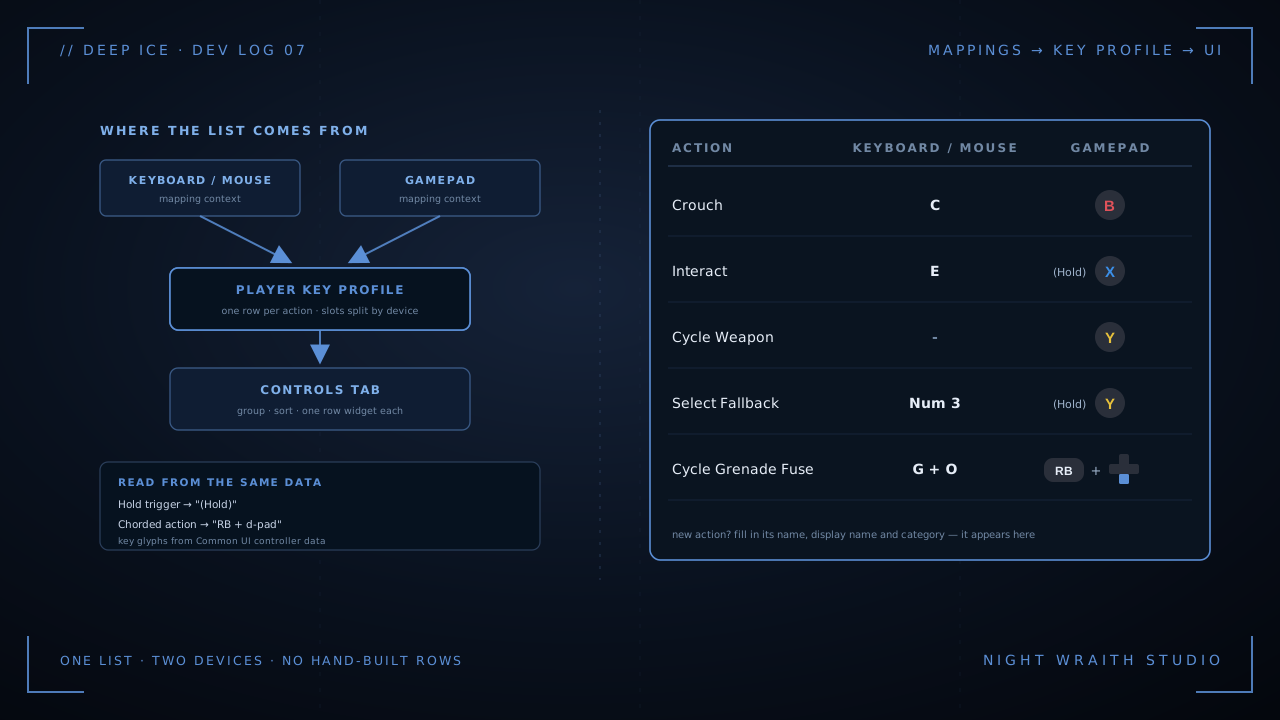
I wanted the Options screen to list every key and button binding without anyone hand-building a single row. Getting there meant reading Unreal's input system back to itself — and the list it produced pointed straight at three bugs in my own controls.
Every action the player can perform in Deep Ice is an Unreal Enhanced Input action: Jump, Reload, Throw Grenade, and so on. Each one is mapped to keys in a mapping context — one context for keyboard and mouse, one for gamepad.
The Controls tab in Options needed to show all of that: one row per action, the keyboard/mouse key in one column, the gamepad button in the other. The obvious way is to build a row per action in the UI by hand, and then remember to update it every time a binding changes. I didn't want that. I wanted the list to come from the same data the game actually uses, so it can't drift.
Where the data lives
Enhanced Input has a feature built for exactly this, called user settings. Once it's switched on and the mapping contexts are registered with it, it maintains a key profile: one row per player-mappable action, holding every key bound to it. Each action carries a name, a display name and a display category on the asset itself.
So the Controls tab does very little. It reads the profile, groups the rows by category, sorts them, and creates a row widget for each. Adding a new action to the list means filling in three fields on that action. No UI work.
Remapping, when it arrives, will edit that same profile, so the list won't need changing for that either.
Surprise one: where did my keyboard keys go?
The first version of the list looked right at a glance. Then I noticed Crouch showed the gamepad's B button and no keyboard key at all, even though it's bound to C. The same was true of every action bound on both devices. Keyboard-only actions like Move Forward showed W perfectly.
The cause was in how the profile is filled in. Each registered mapping context's keys are slotted in by action, and by default the engine treats every key as coming from the same unspecified device. So the gamepad context registered first and put B in Crouch's first slot. Then the keyboard context registered, found Crouch's first slot already used by "the same device", and updated that entry instead of adding a new one. One key per action survived.
Unreal provides a hook for exactly this: a function on the user-settings class that decides which device a mapping belongs to. The default answers "unknown" for everything. I made a small subclass that answers by looking at the key:
FHardwareDeviceIdentifier UEuropaHorrorInputUserSettings::DetermineHardwareDeviceForActionMapping(
	const FEnhancedActionKeyMapping& ActionMapping, const UInputMappingContext* IMC) const
{
	return ActionMapping.Key.IsGamepadKey()
		? FHardwareDeviceIdentifier::DefaultGamepad
		: FHardwareDeviceIdentifier::DefaultKeyboardAndMouse;
}
Point the project's input config at that class and each device gets its own slots. Crouch showed C again.
One thing tripped me up along the way. I added the class with Live Coding and nothing changed, because the editor reads that config setting once at startup. A brand-new class added while the editor is running isn't there when that happens. A full build and restart fixed it.
Buttons as pictures
Gamepad bindings read badly as text ("Gamepad Face Button Right"), so the gamepad column shows the button's icon instead. Unreal's Common UI already keeps a table of key icons per controller type. Each cell asks that table for the icon matching the key's own device, not whichever device the player happens to be holding, so the gamepad column always shows controller icons. If there's no icon for a key — thumbstick movement, for now — it falls back to the key's name.
Holds and chords
A list of keys isn't the full story, though. Some bindings only fire if you hold the button. Some only fire while another button is held. Showing just "Y" for both "cycle weapon" and "hold to switch to your fallback weapon" is misleading.
Both facts are already in the data, mostly:
- Holds are usually a Hold trigger on the action or on its mapping. The cell checks for one and shows "(Hold)" in front of the key, per device, because a hold on the gamepad mapping says nothing about the keyboard one.
- Chords are a trigger that names another action which must be held. Grenade fuse and throw force live on the d-pad, but only while the grenade button is held. The cell finds the chorded action, looks up its key on the same device, and shows "RB + d-pad down". Because it reads the live profile, a future remap of the grenade button will show up there too.
One case the data can't express: the ping wheel and radial menu open when you press and close when you release, which is a hold in practice, but it's done in gameplay code rather than with a trigger. For those I added a simple "is a hold" flag to the per-action settings, so the screen can still label them honestly.
What the finished list told me
Once every binding was on one screen, with holds marked, the gamepad column made a problem obvious. The Y button had three different actions on it, which I'd never noticed because I rarely play with a controller.
- Ping opened its wheel the moment Y went down.
- Cycle weapon had no trigger and was bound to the per-frame "triggered" event, so holding Y cycled weapons every frame.
- Select primary had a Hold trigger, but was bound to the "started" event — which a Hold trigger reports the moment the button is pressed, not when the hold completes.
X and the right bumper had smaller versions of the same clash.
That forced a proper look at how Enhanced Input reports events. With no trigger, an action reports started once on press and triggered every frame while held. Tap and Hold triggers both report started as soon as the button goes down, because the timer has begun. So where one button now carries both a tap action and a hold action, I bind both to triggered, which only fires once the tap or hold condition is actually met. Bound to started, both fired on every press.
The fix was a proper gamepad layout: tap X to reload, hold X to interact; tap Y to cycle weapons, hold Y for the fallback; ping and the radial menu moved to the d-pad. And because the controls screen reads the data, the new layout — holds, chords and all — appeared on it without any UI changes.
And one more: Invert Y
While testing the new checkbox for Invert Y, I confirmed something I'd noticed while recording footage: with Invert Y off, pushing the mouse forward looked down. The setting was effectively the wrong way round.
Mouse-forward and stick-up both arrive as positive Y, and Unreal's pitch input treats positive as look down. My settings code passed positive Y straight through when Invert Y was off. The tempting one-line fix was to negate it in the same place. But the radial menus read that same input to work out which segment you're pointing at, so negating it there would have turned the menus upside down — and made the Invert Y setting flip them too, which it has no business doing.
So the settings code now only applies sensitivity, and the sign is applied at the single line that feeds the camera. The menus always see "up is up", and Invert Y only affects what it says it does.
What I take from it
I set out to save myself from maintaining a list of rows. What I got was a screen that reports the input system's actual state back to me. Within a week it had shown me a missing device split, a button doing three jobs, and a setting that did the opposite of its name.
I'm going to keep building tools like that — ones that show me what the system is really doing, rather than what I think it's doing.
Deep Ice is a 1–4 player cooperative survival horror game built in Unreal Engine by Night Wraith Studio — developed in the open, controls and all. More as it comes.